How to Delete Old Backups on iCloud: A Complete Guide to Free Up Storage and Manage Your Data

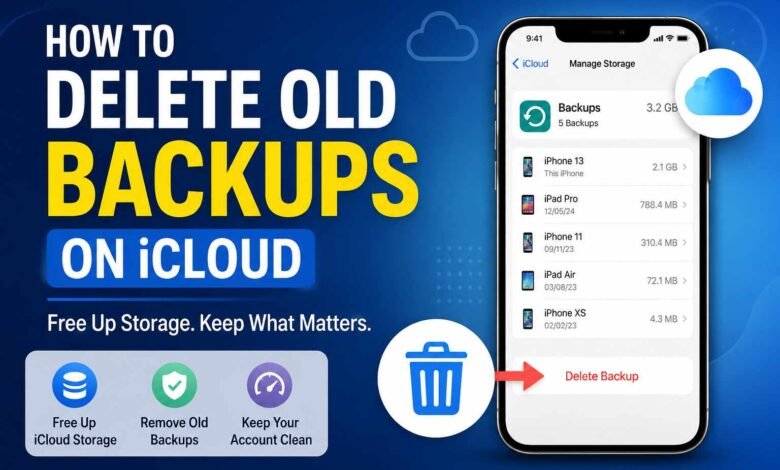
iCloud is one of Apple’s most useful services, allowing users to back up their iPhones, iPads, and other Apple devices automatically. These backups help protect important information such as photos, app data, messages, settings, and documents. However, over time, iCloud backups can accumulate and consume a significant amount of storage space. Many users discover that old device backups are taking up valuable storage, preventing new backups from being created or forcing them to purchase additional iCloud storage.
Understanding how to delete old backups on iCloud can help you reclaim storage space, organize your account, and ensure that only relevant backups remain. This guide explains everything you need to know about identifying, reviewing, and safely removing outdated backups from your iCloud account.
Table of Contents
ToggleWhy Old iCloud Backups Take Up Storage
Every time you back up an iPhone or iPad to iCloud, Apple stores a snapshot of your device data. If you upgrade to a new device or stop using an older one, the backup may remain in your iCloud account indefinitely.
Over the years, these backups can become quite large because they may contain:
- App data
- Device settings
- Home screen layouts
- Messages
- Health information
- Photos and videos (depending on settings)
Since free iCloud accounts include only 5GB of storage, even one outdated backup can consume a large portion of your available space.
When You Should Delete an Old iCloud Backup
Removing an old backup is generally safe when the device associated with it is no longer being used. Common situations include:
- You upgraded to a newer iPhone.
- You sold or traded in an old device.
- A backup belongs to a device that no longer works.
- You need additional iCloud storage.
- Multiple backups exist for devices you no longer own.
Before deleting any backup, verify that it is not associated with a device you still use regularly.
How to Check Your Existing iCloud Backups
Before removing anything, review the backups stored in your account.
On iPhone or iPad
- Open Settings.
- Tap your Apple ID name at the top.
- Select iCloud.
- Tap Manage Account Storage or Manage Storage.
- Choose Backups.
You will see a list of devices currently backed up to iCloud, along with the size of each backup and the date of the most recent backup.
This information helps you determine which backups are current and which are outdated.
How to Delete Old Backups on iCloud Using an iPhone
If you primarily use an iPhone, deleting old backups is straightforward.
Step 1: Access iCloud Storage
Open Settings, tap your Apple ID, and navigate to iCloud followed by Manage Storage.
Step 2: Open the Backup List
Tap Backups to view all available device backups linked to your account.
Step 3: Select an Old Backup
Choose the backup associated with a device you no longer use.
Step 4: Remove the Backup
Scroll to the bottom and tap Delete Backup.
Step 5: Confirm Deletion
Apple will ask you to confirm your decision. Once confirmed, the backup will be permanently removed from iCloud storage.
After deletion, the storage space becomes available almost immediately.
How to Delete Old Backups on iCloud Using a Mac
Mac users can also manage iCloud backups directly through system settings.
For macOS Ventura and Later
- Click the Apple menu.
- Open System Settings.
- Select your Apple ID.
- Click iCloud.
- Choose Manage Storage.
- Select Backups.
- Choose the backup you want to remove.
- Click Delete.
For Older Versions of macOS
- Open System Preferences.
- Click Apple ID.
- Select iCloud.
- Click Manage.
- Choose Backups.
- Select the outdated backup.
- Click Delete.
This process is useful when reviewing multiple backups on a larger screen.
How to Delete Old Backups on iCloud Using a Windows PC
Apple also provides access to iCloud storage management through Windows.
Using iCloud for Windows
- Install and open iCloud for Windows.
- Sign in using your Apple ID.
- Click Storage.
- Select Backups.
- Choose the backup you wish to remove.
- Click Delete and confirm.
This option is particularly useful for users who no longer own a Mac but still manage Apple devices.
What Happens After Deleting an iCloud Backup?
Many users worry about losing important data when removing a backup. Understanding the consequences can help you make an informed decision.
When you delete a backup:
- The backup file is permanently removed from iCloud.
- Storage space is immediately freed.
- The deleted backup cannot be restored later.
- Current device data remains unaffected.
- Other backups stay intact.
Deleting a backup does not erase information stored directly on your current iPhone, iPad, or Mac.
How to Identify Backups That Are Safe to Remove
Not every backup should be deleted. A quick review can help prevent accidental data loss.
Look for backups that:
- Belong to devices you no longer own.
- Have not been updated in months or years.
- Represent duplicate devices after upgrades.
- Are associated with old iPhones, iPads, or iPods.
Avoid deleting backups for devices you still actively use unless you have another backup solution available.
Alternative Ways to Free Up iCloud Storage
Deleting outdated backups is only one method of recovering storage space. You can also optimize your account by managing other data categories.
Remove Unnecessary Photos
Large photo libraries often consume the most storage. Delete unwanted photos and videos and empty the Recently Deleted folder.
Manage App Data
Some applications store large amounts of information in iCloud. Review storage usage and remove data from apps you no longer use.
Delete Large Attachments
Messages with videos, photos, and documents can occupy significant space over time.
Clean Up iCloud Drive
Remove old files, downloads, and documents that are no longer needed.
Combining these strategies can dramatically reduce storage usage.
Common Mistakes to Avoid When Removing Backups
Storage management is simple, but a few mistakes can create problems later.
Deleting the Wrong Backup
Always verify the device name before confirming deletion.
Removing the Only Backup Available
If a device is still active, ensure another backup exists before deleting the current one.
Ignoring Backup Dates
Review the last backup date carefully. A recent backup may still be important.
Not Checking Storage Usage
Sometimes photos or files consume more storage than backups. Reviewing all categories helps identify the biggest opportunities for freeing space.
Benefits of Regular iCloud Backup Management
Regularly reviewing your backups provides several advantages.
More Available Storage
Removing outdated files frees space for new backups and data.
Better Organization
A clean backup list makes it easier to identify current devices.
Reduced Need for Paid Storage
Many users can avoid upgrading their storage plan simply by removing unnecessary backups.
Faster Backup Monitoring
Fewer backups make it easier to track and manage your current devices.
Consistent maintenance keeps your iCloud account efficient and organized.
Final Thoughts
Learning how to delete old backups on iCloud is an important part of managing your Apple account effectively. Over time, unused device backups can consume valuable storage space and create unnecessary clutter. By reviewing your backup list, identifying outdated devices, and safely removing old backups, you can free storage, improve organization, and ensure your iCloud account remains optimized.
Before deleting any backup, take a moment to confirm that it belongs to a device you no longer need. With careful management and regular storage reviews, you can keep your iCloud storage available for the devices and data that matter most.
FAQs
1. Can I recover an iCloud backup after deleting it?
No. Once an iCloud backup is deleted, it cannot be restored or recovered.
2. Will deleting an old backup erase data from my current iPhone?
No. Deleting a backup only removes the stored backup file from iCloud and does not affect data on your device.
3. How much storage can I save by deleting old backups?
The amount varies depending on backup size. Some backups can free several gigabytes of storage.
4. Is it safe to delete backups from devices I no longer own?
Yes. If the device is no longer used and you do not need the backup, it is generally safe to remove.
5. How often should I review my iCloud backups?
Checking your backups every few months is a good practice to keep storage organized and prevent unnecessary usage.
More Details : Lulutox Detox Tea Reviews: An Informative Guide to Ingredients, Benefits, and Realistic Expectations